
Zendure Energy Manager
Background
The Zendure App “net-zero” option did not work properly because the P1 data can lag by up to 20 seconds. A datagram is sent every second, but the values are delayed too much. As far as I have been able to determine, this is caused by the smart meter (Landis+Gyr).
In addition, I want to combine the different modes from the Zendure app myself. Ultimately, I want more control over charging and discharging the battery.
Schedule
The base of the system is built around a schedule. The schedule is a JSON file with keys that define a date/time and a value that defines a charge/discharge action.
There is a system, the schedule manager, that is used to manually manage the system by changing the entries in the JSON. This is the main GUI. At the moment there is both a mobile and a desktop version.
The actual battery manager is the system that reads the schedule and uses it to control the battery.
Because we use a standard JSON schema, we can manage and/or modify the schedule using different tools. We can also create smart systems that automatically create or alter the schedule.
Battery Manager
For this I use an old Raspberry Pi 2. What you use does not matter, as long as it is on the same network as the battery and the P1 meter. The Python script reads a charge/discharge schedule and acts according to this schedule. The schedule defines when the battery should charge or discharge and at how many watts. In addition, I added two special modes: NetZero and NetZero+.
NetZero is net-zero and attempts to compensate for household consumption by discharging the battery.
NetZero+ is net-zero, but only for charging. All electricity that would otherwise be fed back into the grid is stored.
Within the local LAN there is a simple computer such as a Raspberry Pi. This system reads the schedule and controls the Zendure battery.
The Automation System uses P1 data. This can come from any system, as long as the actual power usage can be read. The default configuration uses the HomeWizard P1 meter.
Smooth charging/discharging
Because of the delay in the P1 meter, the control system uses a smoothing algorithm. It only polls the actual household usage once every 20 seconds and limits sudden changes. Both the maximum charge/discharge rate and the maximum change rate are configurable. This makes the battery less responsive. The drawback is that consumption is not perfectly zero. In practice, this results in a deviation of approximately ±50 watt-hours in the worst case, and on average closer to 25 watt-hours.
Schedule Manager
The schedule is stored in JSON format and can be accessed via an API. It can be hosted on any web server (PHP, CSS, JS) and is modified and/or retrieved via API calls. This ensures that the schedule management component can be hosted on any server.
The schedule manager includes a dynamic price graph for electricity prices for today and tomorrow, when available. These prices are retrieved via get_prices_v6.php (fallback get_prices_v5.php) and cached in JSON format under main/data/price/YYYYMM/priceYYYYMMDD.json.
If the app is not accessed (and no other process calls these endpoints), no new prices are fetched. Price retrieval is on-demand, not background-scheduled in this repository.
When called, the price endpoint behavior is:
- today: fetch only if today file is missing
- tomorrow: fetch only if tomorrow file is missing and NL time is at/after the configured fetch hour (default 14:00 in the price scripts)
Schedule (JSON)
Example schedule:
{
    "********0000": 0,
    "********1200": "netzero+",
    "********1500": 0,
    "202601241700": "netzero",
    "202601241900": -100,
    "202601242100": 0
}
The JSON key represents a date and time and may contain wildcards (*).
The value is either a number (negative, zero, or positive), netzero, or netzero+.
A non-wildcard entry takes precedence over a wildcard entry.
In the example above, every day at 12:00 the system starts storing solar energy that would otherwise be exported to the grid, and stops at 15:00. On January 24th at 17:00, the system starts compensating household usage to achieve net-zero. At 19:00 it starts discharging at 100 watts, and at 21:00 all charging and discharging stops.
Conditional Rules
Conditional rules add dynamic logic on top of the base schedule. They are defined in main/data/charge_schedule_conditions.json (via edit_rules.php) and are resolved into concrete time slots for today and tomorrow.
Use conditional rules when you want schedule values to depend on context such as electricity price, ranking (cheapest/most expensive hours), or sun timing (sunrise/sunset-based logic).
How it works
For each date, the resolver evaluates all enabled rules and generates matching schedule items (time + value). These items are merged into the resolved schedule output used by the UI and automation.
Evaluation/precedence is:
- Manual concrete schedule entry (no wildcard) has highest priority.
- Conditional rule result can override wildcard/default behavior.
- Wildcard/base schedule entry is used when no stronger match exists.
Supported condition fields
Typical condition fields include:
price,ranking,min_price,max_price,spread_pricemin_price_hour,max_price_hoursunrise_hour,sunset_hoursunrise_offset_hour,sunset_offset_hour(dynamic offsets around sunrise/sunset)
Sun-hour rounding uses: sunrise = floor, sunset = ceil. This avoids missing the first sunlight hour and avoids stopping too early near sunset.
Runtime conditions (optional)
A rule can also carry runtime conditions, for example battery SOC (electricity_level). These are stored in resolved JSON as metadata:
runtime_conditions: list of runtime checks (field, operator, value)fallback_value: value to apply if runtime condition is falserule_nameandrule_index: source traceability in UI/API
At runtime, automation evaluates these conditions per loop. If true, it applies the base value; if false, it applies fallback_value. Invalid runtime conditions are skipped and logged (no hard failure).
Example rule idea
“From 2 hours before sunset until sunset, set netzero+; but only while battery level is at least 60%, otherwise fallback to 0.”
This combines a date-resolved sun condition (sunset_offset_hour) with runtime SOC validation (electricity_level >= 60).
Mobile App
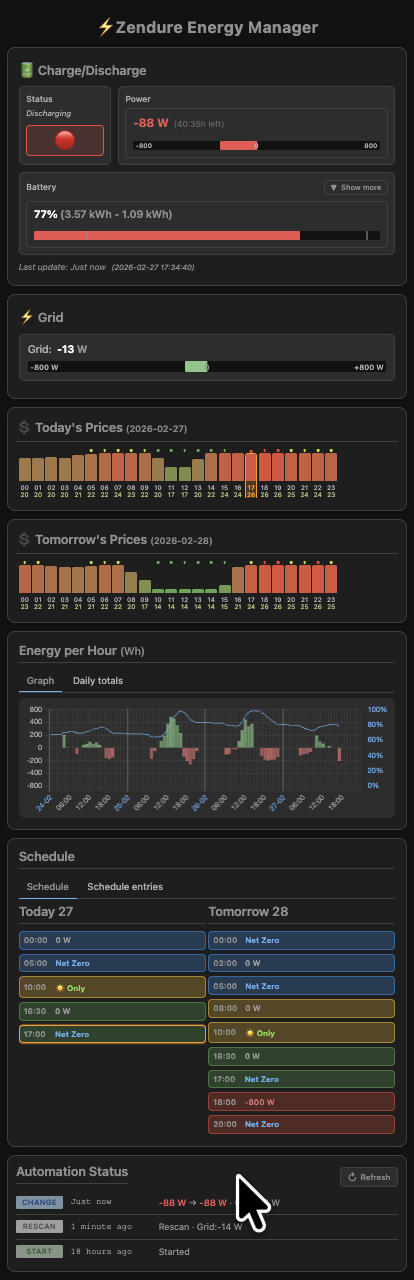
The mobile app shows that status and the schedule. In addition there is a page that can be used to create rules.
Fist the mobile app.
Today’s Prices Widget
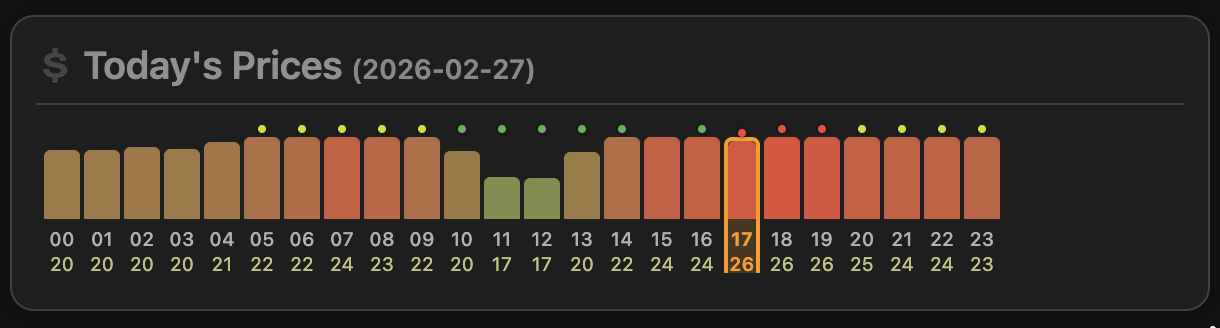
This panel shows the hourly electricity prices for the current day, including visual indicators for schedule and rule context.
Header
Today’s Prices (YYYY-MM-DD) shows the date for the displayed 24-hour price set.
Hourly bars
Each vertical bar represents one hour (00 to 23).
- Bar height/color: relative price level (lower = greener, higher = red/orange).
- Hour label: shown below each bar.
- Price label: numeric value under the hour (typically cents/kWh, based on your UI formatting).
Current hour highlight
The current hour is outlined/highlighted (in the screenshot: hour 17) so you can quickly identify “now”.
Dots above bars
Small dots above bars indicate schedule/rule metadata for that slot.
- Green/Red-style dots: indicate scheduled/condition-linked slots (color reflects the schedule type styling).
- Orange dot: indicates the slot has a runtime condition (for example battery-level dependent behavior).
Click behavior
Clicking a bar opens the slot detail dialog. That dialog shows spot price, effective schedule value, and source metadata (for example rule-based source labels such as #1 Solar).
Energy per Hour (Wh) Widget
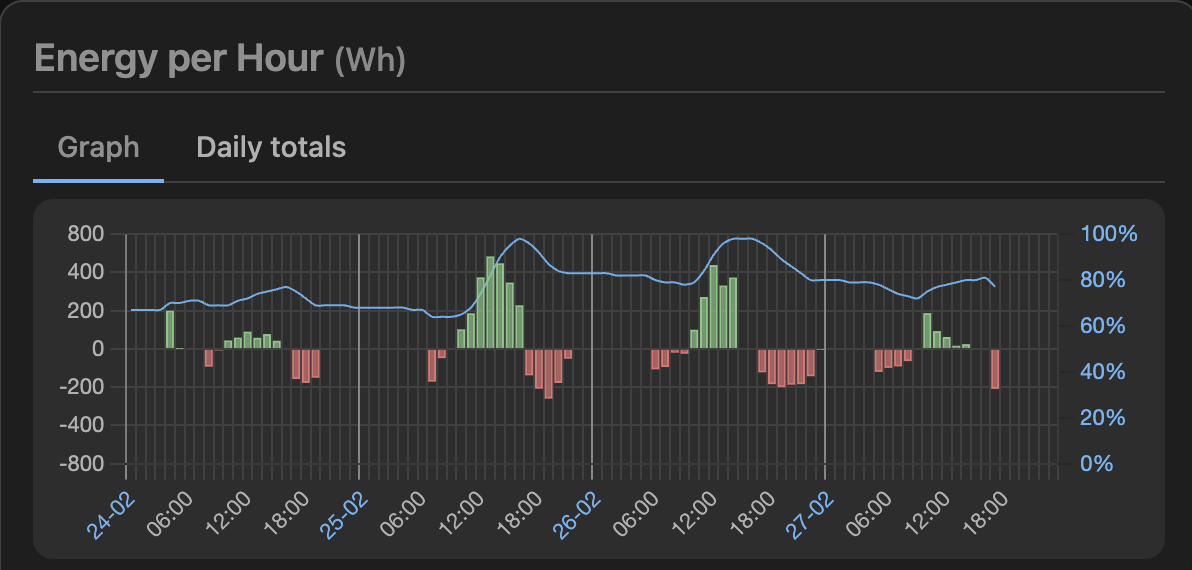
This widget visualizes battery energy flow over time and combines power activity (bars) with battery state of charge (line).
Tabs
The widget has two views:
- Graph: time-based chart with hourly bars and SOC line.
- Daily totals: aggregated totals per day.
Bar chart (Wh)
The vertical bars represent energy per hour in watt-hours.
- Green bars (positive): charging energy stored in that hour.
- Red bars (negative): discharging energy used in that hour.
- Left Y-axis: Wh scale (for example from about -800 to +800).
Blue line (battery level)
The blue line shows battery state of charge over time.
- Right Y-axis: percentage scale (
0%to100%). - The line helps correlate charge/discharge behavior with SOC evolution.
Time axis
The X-axis shows chronological timestamps across multiple days. Day markers (for example 24-02, 25-02) separate daily blocks; hour labels (such as 06:00, 12:00, 18:00) provide intra-day reference.
Purpose
Use this chart to validate whether schedule decisions and runtime conditions produce the expected charging/discharging pattern and battery-level trend.
Condition Rules Editor
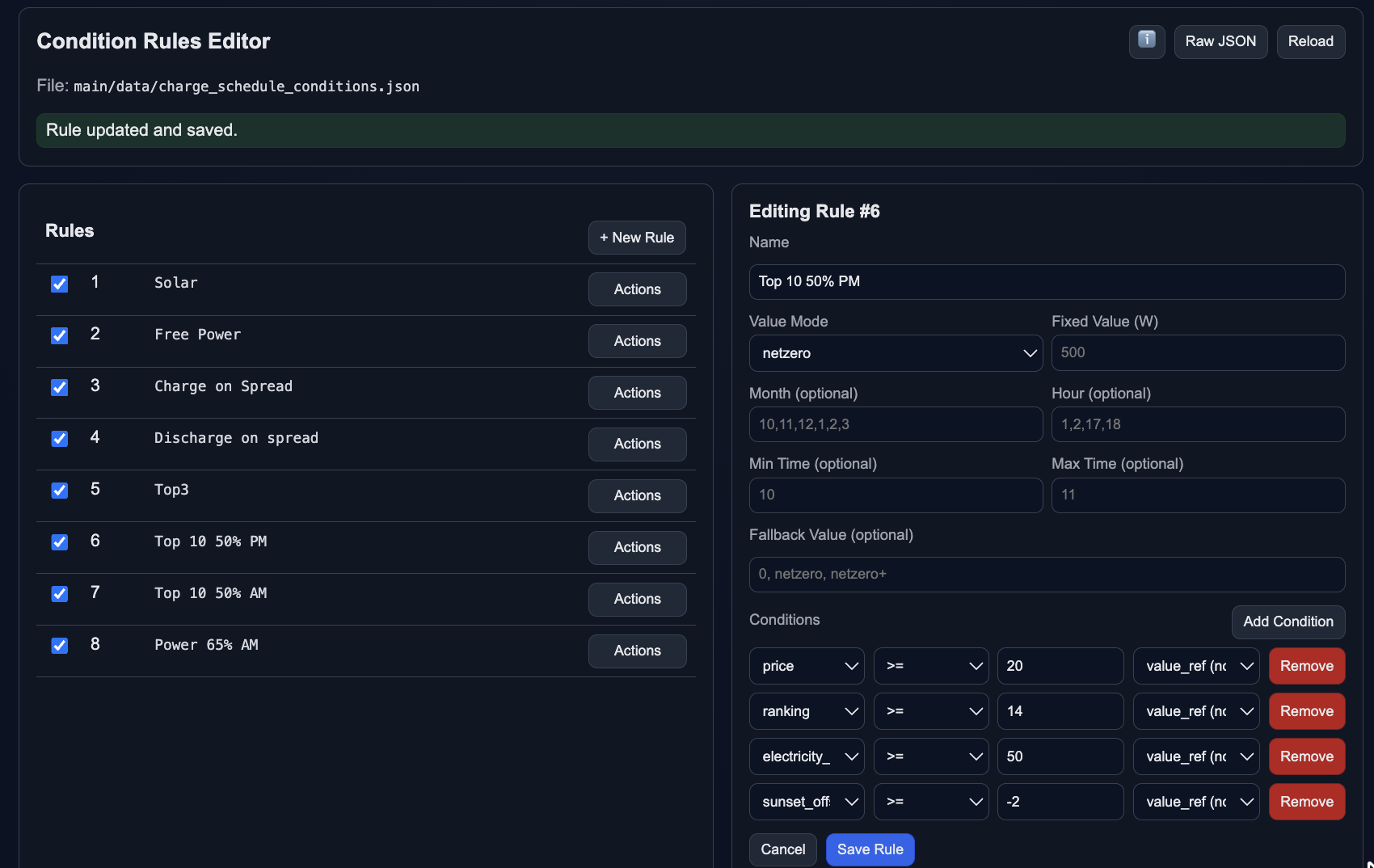
This screen is used to create, enable, disable, and edit conditional schedule rules stored in main/data/charge_schedule_conditions.json.
Header actions
- Info button: opens rule/help documentation.
- Raw JSON: opens the underlying JSON for direct inspection.
- Reload: reloads current rules from file.
- Status banner (green): confirms save/update results (for example “Rule updated and saved.”).
Left panel: Rules list
The left side shows all rules with index and name.
- Checkbox: enable/disable a rule without deleting it.
- Rule number + name: stable identification (for example rule
#6). - Actions: select/edit/duplicate/delete actions (depending on current implementation).
- + New Rule: create a new empty rule.
Right panel: Rule editor
The right side edits the selected rule (in screenshot: Editing Rule #6).
- Name: human-readable label shown in UI source metadata (for example “#6 Top 10 50% PM”).
- Value Mode: output action when the rule matches (
netzero,netzero+, or numeric power mode). - Fixed Value (W): watt value used when value mode requires a numeric setpoint.
- Month (optional): limit rule to specific months.
- Hour (optional): limit rule to specific hours.
- Min Time / Max Time (optional): constrain the active time window.
- Fallback Value (optional): value used when runtime conditions fail.
Conditions section
Each row defines one condition using:
- Field (for example
price,ranking,electricity_level,sunset_offset_hour) - Operator (
>=,<=,=, etc.) - Value (numeric or supported literal)
- Reference mode (how the right side is interpreted, e.g. value reference/static mode)
- Remove button per row
All condition rows in a rule are combined with logical AND: every condition must be true for the rule to match.